In an increasingly dematerialized world, the ability to digitize and organize documents has become essential for both professionals and individuals. When faced with a large file or multiple pages requiring consistent scanning, knowing how to merge these elements into a single digital file is fundamental. This not only allows for better information management but also facilitates sharing and storage. Whether using a smartphone, a tablet, or a traditional scanner, mastering the steps to accomplish this task can greatly simplify daily workflow.
The steps to scan multiple pages into a single document on PC and Mac
Scanning multiple pages into a single PDF document on a PC or Mac requires some preparation and the right tools. On Windows 10, users have the built-in application Windows Scanner, which allows them to scan documents directly from a printer or a scanner connected to the computer. For those looking for more advanced features, PDF editing tools like PDFelement or Adobe Acrobat offer the ability to scan to PDF with more control over scanning settings.
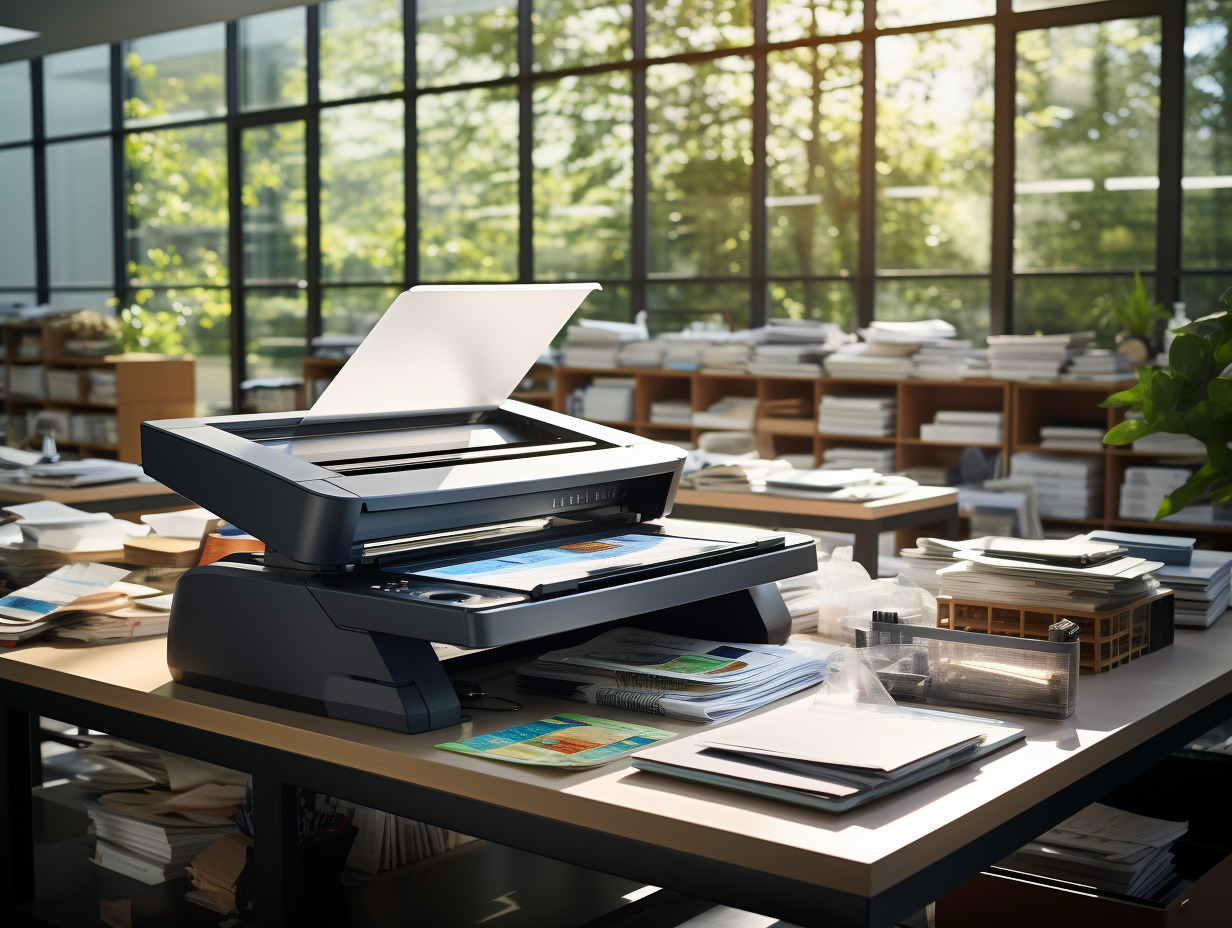
Regarding hardware, printers such as HP OfficeJet Pro 7730 or Canon PIXMA TS8251 incorporate multiple page scanning features that facilitate the process. The document is placed on the scanner’s glass surface or in the automatic document feeder (if available), allowing a stack of pages to be scanned in a single operation. Specific scanning software like Epson Scan, Brother iPrint&Scan, or Xerox Print and Scan Experience, available on each manufacturer’s respective platforms or on the Microsoft Store, can also be used to manage scanning and the creation of multipage PDF files.
To answer the question of how to scan multiple pages into the same file with various devices, it is essential to properly set up your scanning software. Select PDF as the output file type, ensure that the multiple page scanning option is enabled, and adjust the resolution and color settings as needed. Once the pages are scanned, the software will typically offer to assemble them into a single PDF file, ready to be saved, shared, or archived.
How to scan multiple pages into a single document on mobile
The advent of smartphones has transformed our devices into versatile tools, capable of replacing a traditional scanner to easily digitize documents. Applications like Scanner Pro for iPhone and Camscanner for Android have become references in the field of mobile scanning. They allow you to capture pages using your device’s camera and convert them into a single, easy-to-share PDF file.
To scan multiple pages into a single file, open the scanning app of your choice and select the document capture option. Once the first page is scanned, the apps typically offer to add additional pages to the same document by simply continuing to take pictures. The optical character recognition (OCR) feature, available on both apps, is a major asset that allows you to convert images into editable text and search for keywords within the scanned documents.
After capturing all the necessary pages, the apps provide the option to rearrange, crop, or adjust brightness and contrast to enhance the readability of the final document. Once the layout is complete, select the export option in PDF format to assemble the scanned pages into a single file. This file can then be saved on your device, hosted in the cloud, or shared via email or instant messaging, making mobile scanning not only convenient but also extremely efficient.